
Electronic Partners · Repair guide
Microsoft Surface Pro 7 Screen Repair
Help with your Microsoft Surface Pro 7: describe the symptoms, understand what needs checking and prepare a useful repair enquiry.
Assessment confirms the repair scope and parts availability.
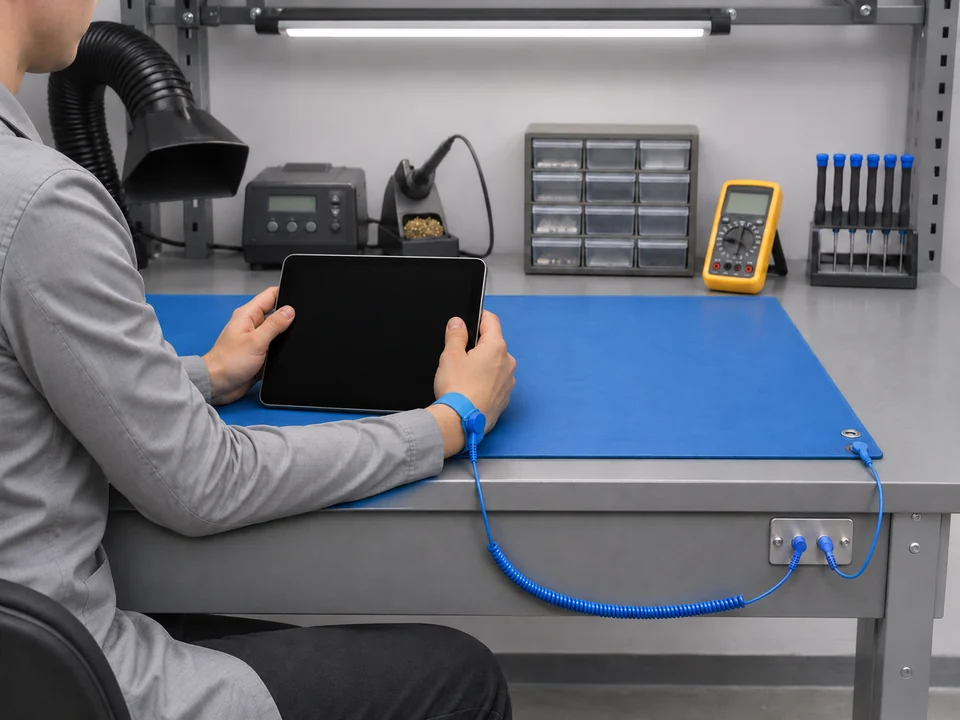

Separate picture and touch symptoms
A display complaint can mean a broken surface, no picture, intermittent output or touch input that no longer responds. These observations describe different parts of the problem. A dark screen alone does not prove that the display panel needs replacement; power and connection faults can require different investigation.
Useful observations
- Is there a picture, a backlight or any sign of power?
- Is the fault constant or does it change when the device warms up?
- Are touch input, colour and brightness affected in the same area?
Picture, touch and accessories on Surface Pro 7
Microsoft specifies a 12.3-inch PixelSense display with ten-point touch for Surface Pro 7. Describe the picture and touch response separately, and mention a pen or Type Cover only if it is involved in the fault. Confirm that the device is Pro 7, rather than assuming another Surface generation uses the same screen or connections.
Reported symptoms on the Microsoft Surface Pro 7
No suitable public symptom description is available. Use the observations above to describe your own fault.
What the quotation needs to confirm
Assessment needs to distinguish panel damage from the picture, power and touch functions. Replacement parts and any calibration requirements depend on the exact model.
Prepare your repair enquiry
Record the visible behaviour without repeatedly restarting or flexing the device. If it still works, back up important files before arranging repair. Avoid applying pressure to damaged glass or trying to separate the screen layers yourself.
For a tablet, identify the exact generation and screen size where known. Note whether touch and picture are affected together, and tell us about important data or accessory connections needed to demonstrate the fault.
Keep passwords and private information out of descriptions and photographs.
Questions before sending it
Should I include the keyboard or stylus?
Describe any accessory involved in the fault and give its model where known. Confirm which items are required before sending the tablet and accessories.
What if more than one function is affected?
List every affected function and mention earlier repairs, drops or liquid exposure. Confirm which work and checks are covered by the quotation.
Manufacturer information
Links do not imply manufacturer authorisation or endorsement.
Customer reviews of Electronic Partners
-
 I was very impressed with the service. I was able to post the item free and the company used my enevelop to return the tablet: a great example of recycling. … More They kept me in touch with progress throughout the process. I will definitley use them if I need to and would have no hesitation in recommending them if asked.
-
 First Class.
My Lenovo 10" tablet suffered a cracked screen so googled Lenovo repairs and chose Electronic Partners for the repair after seeing good … More reviews, am so glad I did.
Everything went very smoothly from the original quote to the repair and tracked delivery back to me by the Royal Mail.
The repair was completed quickly and successfully. I was sent 7 emails informing me of the progress of the repair up to the eventual despatch.
Thank you to Google and Electronic Partners. A job well done. -
 Excellent. Ask for an estimate to fix my sony tablet...affordable price so sent away to be repaired. Returned promptly and the online tracking is very … More useful for peace of mind. Highly recommended.